deb http://archive.canonical.com/ubuntu maverick partnerdeb-src http://archive.canonical.com/ubuntu maverick partner
Thursday, October 14, 2010
Using/Installing skype on Ubuntu 10.10 interface...
at
4:22 PM
Posted by
Azker M
0
comments
Saturday, September 25, 2010
How to read Ext3/Ext4 linux partition from windows 7
at
8:53 AM
Posted by
Irfad Razick
0
comments
The ext4 or fourth extended filesystem is a journaling file system for Linux, developed as the successor to ext3.
It was born as a series of backward compatible extensions to remove 64-bit storage limits and add other performance improvements to ext3.However, other Linux kernel developers opposed accepting extensions to ext3 for stability reasons and proposed to fork the source code of ext3, rename it as ext4, and do all the development there, without affecting the current ext3 users
Ext2Read is an explorer like utility to explore ext2/ext3/ext4 files. It now supports LVM2 and EXT4 extents. It can be used to view and copy files and folders. It can recursively copy entire folders. It can also be used to view and copy disk and file
You can download Ext2Read from here
Screenshot
Ext2Fsd is an ext2 file system driver for Windows 2000, XP, Vista. It’s a free software and everyone can distribute and modify it under GPL2.
Procedure o follow
Important Note:- When creating/formatting the ext4 filesystem, make sure to add “-O ^extent” which means disabling the “extent” feature bit. The following steps will not work if your ext4 filesystem still has “extent” feature enabled. ext2 and ext3 partitions should be fine.
First Download ext2fsd from here
Run the ext2fsd installer. During install, we recommend you uncheck the “enable write access” feature to safeguard against losing data in your Linux partitions.
Restart your Windows 7 PC and run the Ext2 Volume Manager from Start Menu.
Important Note:- Use these tools with your own risk if you don’t use them properly it will remove your linux partition data
Source: http://www.ubuntugeek.com/how-to-read-ext3ext4-linux-partition-from-windows-7.html
Friday, September 3, 2010
How to install ubuntu-tweak in Ubuntu 10.04(Lucid Lynx)
at
10:50 PM
Posted by
Irfad Razick
0
comments
Features of Ubuntu Tweak
* View of Basic System Information(Distribution, Kernel, CPU, Memory, etc.)
* GNOME Session Control
* Auto Start Program Control
* Quick install popular applications
* A lot of third-party sources to keep applications up-to-date
* Clean unneeded packages or cache to free disk space
* Show/Hide and Change Splash screen
* Show/Hide desktop icons or Mounted Volumes
* Show/Hide/Rename Computer, Home, Trash or Network icon
* Tweak Metacity Window Manager’s style and behaviour
* Compiz Fusion settings, Screen Edge Settings, Window Effect Settings, Menu Effect Settings
* Set the Shortcuts to archive quicker access your favourite applications
* GNOME Panel Settings
* Nautilus Settings
* Advanced Power Management Settings
* System Security Settings
* And many other in process…
Install ubuntu-tweak in Ubuntu 10.04
Open the terminal and run the following commands
sudo add-apt-repository ppa:tualatrix/ppa
sudo apt-get update
sudo apt-get install ubuntu-tweak
Using Ubuntu Tweak
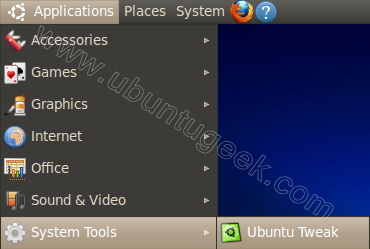
You can open from Applications--->System Tools--->Ubuntu Tweak
Ubuntu Tweak is loading
Login Settings screen
Source editor screen
GNOME Settings screen
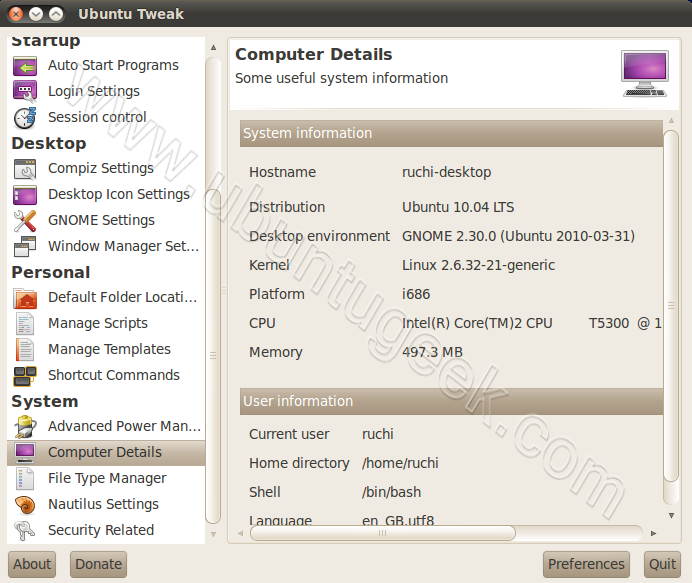
Computer details screen
Nautilus Settings screen
Ubuntu tweak version details
Default folder location screen
Source: http://www.ubuntugeek.com/how-to-install-ubuntu-tweak-in-ubuntu-10-04lucid-lynx.html
IPCop - Firewall / Content Filter / Block Porn / Web Proxy Cache - Copfilter / AdvProxy / URL Filter
at
7:03 AM
Posted by
Irfad Razick
0
comments
http://pc-addicts.com - I set this up one morning to help block certain types of content from reaching any of the computers in the house. Also, the other reason I set this up, was for the web proxy caching capabilities. Not only does the sites that are routinely visited come up quicker, but it also limits the amount of bandwidth that we use.
KVM vs. VMware: A Case Study
at
6:52 AM
Posted by
Irfad Razick
1 comments
After a month of debate and experimentation, my employer has made the decision to use the open-source KVM virtualization infrastructure for migrating IT resources to a virtualized environment. Below, I discuss why we chose KVM over its (mostly proprietary) alternatives.
Until a couple years ago, the open-source community offered no real contender in the virtualization market. True, the qemu project has been around for a while, but qemu remains too inefficient for most production environments. Xen has also existed since 2003, but for a long time it only supported a limited set of guest operating systems, which did not include Windows until late 2005. As a result, proprietary virtualization products like VMware enjoyed a near-monopoly in the enterprise market until quite recently.
The rapid maturation of KVM, or ‘kernel-based virtual machine’, over the course of the last couple of years constituted the first open-source challenge to VMware. Integrated into the Linux kernel, KVM provides feature-rich and highly efficient virtualization.
My colleagues and I tested KVM (running on an Ubuntu 8.04 host) and ‘barebones’ VMware ESX server over the last several weeks. Ultimately, we decided KVM was a better fit for our needs based on the following considerations:
- Cost. Although our virtualization requirements are minimal–we need to run only two guest servers on a single host machine–VMware would have cost an astonishing amount of money. With features like VMware motion factored in, we were looking at a huge hit to the budget–and it didn’t help that VMware charges per CPU, not machine, regardless of whether all CPUs will actually be dedicated to virtualization. KVM is totally free, in both senses of the word, and offers functionality equivalent to VMware motion.
- Ease of deployment. Installing KVM on Ubuntu 8.04 is as simple as an apt-get. ESX server is also easy enough to install, but having to deal with licensing adds another layer of complication that we’d prefer not to face. KVM, of course, requires no license.
- Speed. Although I don’t have hard numbers, KVM-based virtual machines definitely ‘felt’ more responsive than those running on VMware. Our experience seemed to confirm Red Hat’s claim last fall that KVM can support five VMs for every three running on VMware on the same piece of hardware. It was also troubling that ESX server wasted upwards of 500 megabytes of memory–without any VMs running–on system overhead, while an Ubuntu server is a considerably more efficient host.
- Management. Apparently it never occured to VMware that systems administrators might be running Linux on their workstations. As a result, Windows is the only platform on which VMware’s graphical management infrastructure is supported. A Linux CLI client is available, but I’d like more options than that. KVM, in contrast, can be managed via the command line, via graphical interfaces (running either on the local machine or forwarded over ssh to a remote workstation) or through the Enomaly web interface.
Perhaps the single major downside of KVM is that it requires a bit more technical know-how than VMware to deploy effectively, since some features can only be configured via manual hacking of XML files. But as KVM and related tools continue to mature, expect that to change.
For IT staff interested in zero-cost, Linux-friendly, feature-rich and resource-efficient virtualization, KVM has become the way to go. If VMware wants to compete, it needs to rise from the laurels of its crumbling monopoly by innovating and lowering costs.
Source: http://www.workswithu.com/2009/04/27/kvm-vs-vmware-a-case-study/
youtube-dl: download youtube videos in Ubuntu using command line
at
6:16 AM
Posted by
Irfad Razick
0
comments
If you use Ubuntu (or other Linux distribution) and you wish to download some video from youtube.com into .flv file you can try using youtube-dl command line utility. It just downloads videos without any online applications, converters or etc. Type the following command in terminal to get it installed:
sudo apt-get install youtube-dl
Let’s imagine you would like to download the following video: http://www.youtube.com/watch?v=2leg8mUE9rs (this is part of Military Parade at Red Square in Russia at 9th of May 2010). Just run youtube-dl download utility as follows:
youtube-dl http://www.youtube.com/watch?v=2leg8mUE9rs
and in a few minutes you will get 2leg8mUE9rs.flv file that could be viewed using almost any video player like my favorite one VLC.
Friday, July 16, 2010
Cheese webcam software for ubuntu 10.04
at
6:08 PM
Posted by
Mohamed Irfad
3
comments
Cheese : For your webcam
The software that you can use very easily for taking photos and videos is “cheese”. Actually it was written in 2007 as a part of Google Summer of code. Cheese can also create some fancy effect in photos and videos by using Gstreamer.
Requirements for Using Cheese :
*GNOME 2.28
*GStreamer 0.10
*webcam
How to install Cheese in Ubuntu 10.04?
It is very simple ..it will take two steps and few minutes to install.
step1: Go to Ubuntu Software Center or Synaptic Package Manager and search for cheese.
step2: Click to install.
step3: Thats it, You can go to Applications> Sound and Video > Cheese Webcam Booth
Sunday, July 11, 2010
Blender 3D
at
10:09 PM
Posted by
Muhammed Naizer
0
comments
Blender is a sterling example of what can be done within the GNU free software movement. It doesn't have to hang its animated head in the presence of any commercial animation programs. The work it turns out is vividly detailed--check out the screenshots--and movements are convincingly smooth. It is frequently used to build developers to build complex avatars and environments on sites like IMVU.com, a 3D chat system. The reason is pretty simple: Blender has all the features you need to produce interactive 3D graphics and games that are compatible across platforms. Its suite of features allows modeling, rendering and postproduction polishing.
- Open SPM(Synaptic Package Manager)(Administration->Synaptic Package Manager) or Ubuntu Software Center(Applications) and Search for Blender.
- Check the the box to install and apply(Required in SPM).
- Downloading and installation will complete within few minutes.
Friday, July 9, 2010
Easy way to Mount/Unmount .iso Images in Ubuntu
at
8:43 PM
Posted by
Mohamed Irfad
0
comments
The functions are.
- Automatically Mounts ISO, IMG, BIN, MDF and NRG Image Files.
- Automatically creates a mount point in your home directory.
- Automatically Unmounts the Image files.
- Automatically removes the mount directory to return your home directory to its previous state.
- Automatically saves the history of the last 10 images mounted.
- Mounts multiple images.
- Burn ISO and IMG Files to optical disk.
- Generate Md5 and SHA1 checksums.
- Automatically retrieves any previously unmounted images.
- Automatically generates a log file of all commands needed to mount and unmount images manually.
- Localizable (currently Czech, Danish, French, Hungarian, Italian, German, Polish, Slovenian, Spanish and Turkish are available.)
sudo apt-get install furiusisomount
This will complete the installation.
Using Furius ISO Mount
Go to Applications>Accessories>Furius ISO Mount
Once it opens you should see the following screen here you can specify your and mount point where you want to mount.
After mounting you can see the Mounter files on your desktop and Can access the files.

Cheers.
Ubuntu guide to using HSDPA USB-modem Huawei E220 with the Dialog or Mobitel network
at
8:33 AM
Posted by
Azker M
0
comments

Using the Huawei E220 under Linux is not supported by the 3G operator 3 (in SL). Here’s a guide how to get it working on Ubuntu.
Your connection have a pin-code per default set. Its written on your larger sim-card adapter. In order to simplify alot, lets just remove this. Put the 3g data simcard in your 3g-phone and remove the sim pin. Then put the card into the USB-modem.
If you start up your Ubuntu machine and plug in the USB-modem, it will show as a cd-rom drive (atleast my does). Also I’m getting a folder popping up as if it would be a storage device (it does seems to be a storage device for windows drivers..).
- First step, right click on the newly auto-created cd-rom icon on your desktop and choose eject. Close any windows using the device.
- Start a terminal. The commands below should be ran as root.
rmmod usb-storage
rmmod usbserial
(the later might create an error.)
lsusb
- The last command shoul show the device connected similiar to:
Bus 001 Device 003: ID 12d1:1003
Run:
modprobe usbserial vendor=0×12d1 product=0×1003
Now, disconnect the Huawei E220 USB-modem and wait a few seconds before connecting it again.
- As soon as the device have stopped blinking green you should find three new USB-devices by running the command:
ls -al /dev/ttyU*
Now you can see the Device in connection settings for Mobile Broadband
How to setup Wine and run Windows applications in Ubuntu
at
8:32 AM
Posted by
Azker M
0
comments
As I started to use Ubuntu and forget about Microsoft. I was searching for softwares which I use mostly in Windows. Finally I got it. We can even install and run windows applications in Linux OSs. An application called Wine will help you to make it up. Follow the instructions on how to configure.
1. Open your Terminal in Ubuntu and run
sudo apt-get update
Enter your account password and it'll update application DB of Ubuntu

2. After finishing go to System>Administration>Synaptic Package Manager, in the search bar type
wine
and left click on white box left to wine and click "Mark for Installation" and click the "Apply" button and install it.

3. After install completed go to Applications and you'll see the Wine tab. And you can configure it the way you want.

4. To install a windows application choose any .exe file and right-click on it and open with "Wine windows program loader" and Install like in Windows.

Enyoy!!
How to configure an e-mail account in UBUNTU [evolution mail!]
at
8:31 AM
Posted by
Azker M
0
comments
This tutorial shows step by step how to set up a POP3 email address with Evolution Email under the most Linux distributions. I'm assuming that Evolution Email is already installed on your system.
Click on the Forward button.
2. Backup
"I assume you didn't use Evolution before so you don't have any backup files."
Click on the Forward button.
3. Identity
Now you can choose if the email address is your default address; if you want to make it your default address you have to choose Make this my default account.
You can type in an address where you want the others to reply, if this is the same as you typed in before you don't have to fill this field. In the last field you type in the name of the company you're working for but again this is optional.
Then click on Forward.
4. Incoming Mails
For the server type you have to choose POP, as you can see on the screenshot.
Then you have to fill the configuration with the details of your provider. Here is a list with some information. If your provider isn't listed, you can have a look at your provider's homepage or write a mail to your provider.
As Username you have to type in your username or your email address that your provider told you. You can also find this information in the table above.
Under Security I didn't choose any encryption methods. This is the easiest method but not the safest.
Then you have to choose how you want to protect your mail inbox. I protect my mails with a password. You can look if the type of protection is supported by your provider. Then you can choose if Evolution should remember your password but this isn't such a safe method.
Afterwards click on Forward.
Then you can adjust how often Evolution should get the mails from your server. But please notice: some providers like GMX let you check your mails only every 10 min. So if you try to check your mails every 5 min. GMX will block your email account for 30 minutes.
You also can change these options afterwards.
If you have finished it, click on Forward.
5. Outgoing Mails
As the Server Type you have to choose SMTP. You have to type in all the server details from your provider (see list). Also for the outgoing mails you have to type in your username or your email address.
Then click on Forward.
6. Accountname
Here you can give your account a name. You can choose your own name or your email address or any name you want. This description is only for you.
And click on Forward again.
7. Timezone
Here you can choose the timezone in which you live so that your mails have the right time and date. (According to your country choose your place).
Click on Forward again.
8. The End
At the end you have to click on Apply.
Now Evolution should look like this...
You can modify your settings or create new accounts, like I've explained before.
Have fun with Evolution Email.
Installing VLC media player on an UBUNTU environment [supports LINUX as well..]
at
8:31 AM
Posted by
Azker M
0
comments
- Open SPM(Synaptic Package Manager)(Administration->Synaptic Package Manager) or Ubuntu Software Center(Applications) and Search for vlc player.
- Check the the box to install and apply(Required in SPM).
- Downloading and installation will complete within few minutes.
- Open Terminal -Hit CTRL+ALT+T or open it from Applications->Accessories->Terminal.
sudo apt-get install vlc
- It may ask you to enter the user password,if so then enter your password then downloading will begin and installation will also finish within moments.
- Now,I assume you have successfully installed vlc player on Ubuntu 10.04;If any thing goes wrong during this steps let me know through comments.
% sudo apt-get update% sudo apt-get install vlc vlc-plugin-pulse mozilla-plugin-vlc
http://i46.tinypic.com/15zo2ac.jpg
How to use dictionary in UBUNTU without using internet [offline]
at
8:28 AM
Posted by
Azker M
0
comments
First of all, we need to install DictD:
sudo apt-get install dictd
this installs a DICT server. now you can install whatever dictionaries you want. Dictionaries are in the repos, here's a list I found using a package search:
http://packages.ubuntu.com/search?suite=default§ion=all&arch=any&searchon=names&keywords=dict
And to install a thesaurus; for an example use;
sudo apt-get install dict-moby-thesaurus
Thursday, July 8, 2010
The Small Business Server Replacement is Clear(OS)
at
11:34 PM
Posted by
Mohamed Irfad
0
comments

When it comes to the Internet, Linux is a big win.
Mail and web servers, databases, computational clusters and supercomputers all belong to the domain of free software. When it comes to embedded devices, Linux is also king of the roost.
There are two main areas where Linux has still not broken through, however - the desktop and servers for small business. Many small to medium enterprises are already “Microsoft shops” because the desktops run Windows. To break in, Linux needs to slot into these environments without causing a fuss.
Certainly the cloud is offering one solution to this problem, but not all companies are willing to put their sensitive data on-line and in the hands of another. So, a market for local servers to perform these functions is still alive and well.
The requirements
Part of the reason that Microsoft Small Business Server (SBS) is attractive is that it includes many core features required by a company, out of the box. Important services like central authentication, email, file and print sharing and web. Perhaps most important of all is calendaring. It’s something which businesses simply cannot survive without and has been a thorn in the side of Linux based alternatives for a long time.
Here’s a quick glance at some of the main features included with SBS:
- Centralized Authentication (Active Directory)
Mail, calendaring and instant messaging (Exchange)
Webserver (IIS)
Firewall (ISA)
Content management system (Sharepoint)
Antivirus (Forefront)
Database (MS-SQL Premium version only)
Remote Desktop Services
Virtual Private Network (VPN)
Putting company culture and licensing issues aside, if Linux is to compete with SBS it needs to at least perform these specific functions. Not only that, but any Linux operating system needs to be a drop in replacement. It needs to work seamlessly and be simple to use.
It’s one thing to replace a back-end server with Linux, but the desktops aren’t going to go quite so easily. The Linux server therefore must also act as a Primary Domain Controller (PDC) for the Windows based network. This will enable Windows machines to join the network and make use of features such as roaming profiles.
Secondly, if it looks and works differently, users will complain. Most of these companies will be using Microsoft Outlook as the front end to mail and calendaring. Ideally, any Linux server should also work with Outlook.
The answer becomes clear
Why hasn’t Linux broken into this market, like it has with other larger server infrastructure? It’s not because the tools to handle these functions do not exist. On the contrary, in each of these individual areas Linux excels. That’s right. Linux can act as a Windows PDC, share files, serve printers, let alone webservers and databases!
Previously the biggest chink in the armor was decent support for calendar and contact sharing. These days however, there are dozens of options in the form of various groupware implementations. Yes, this too is no longer a hindrance, which is good because it’s a major reason why SBS is still used so heavily.
So all the required various tools exist and any experienced Linux user should have no trouble building a powerful SBS replacement. That’s good and well, but when sysadmins are not Linux savvy they require an operating system that installs these features out of the box, with an easy to use interface. If Linux is too hard to use, they will continue to use Windows. Not only does there need to be a major incentive to switch from Windows to Linux, there need to be as few stumbling blocks along the way as possible.
Now, meet ClearOS, a free and open source Linux distribution which does just that. ClearFoundation released the stable version of ClearOS 5.1 just before Christmas and it is available for download.
It might sound like a new kid on the block, but actually ClearOS has a long history going back to the turn of the century. It was previously known as ClarkConnect, a very popular distribution for setting up a Linux server quickly and conveniently. ClearOS is now built on CentOS, which is in turn built from the source code of Red Hat Enterprise Linux. As such, ClearOS has a solid and reliable foundation.
Features galore
ClearOS pulls all those required features together in a small, simple to install and use package. It can turn any machine into a sophisticated, reliable and powerful server for any network.
So what does it offer? Here’s just a taste:
- Centralized Authentication (LDAP)
Primary Domain Controller (Samba)
File and Print Services (Samba and CUPS)
Mail (SMTP, POP, IMAP, Webmail)
Calendaring (Kolab groupware)
Webserver (Apache)
Firewall plus intrusion protection (iptables, Snort)
Antimalware (Clam Antivirus, Antiphishing, Antispyware)
Antispam (Spamassassin)
Database (MySQL)
Virtual Private Network (IPSec, OpenVPN, PPTP)
Web Proxy (Squid)
The complexity of these individual components is hidden behind the web based management interface, where users can simply turn on and off these modules as required.
While users are encouraged to administer the system via the provided management interface, it is also designed to be extensible. The back end is not hidden away, but offered up in plain sight for admins to get right in and change things if they want to. Various how-tos provide details on how to perform extra functions, such as enabling shell access for users.
ClearOS supports external modules, that is extra services outside of those included by default. This is part of the design goal of the operating system which will hopefully foster collaboration and increase its range of useful features. It is possible to replace the default groupware server with a more sophisticated one or even create new custom modules, such is the flexibility.
The included Kolab groupware server is reasonable, however it appears that a connector for Outlook must be purchased separately, such as that from Toltec or KONSEC. A feature rich, but rather unattractive, web client is also included via Horde. Linux users can have native support through KDE’s Kontact application, or Mozilla’s Thunderbird and the Sync Kolab addon.
The installer is straight forward and supports both hardware and software RAID. During installation the user is able to select a number of services to include, however these can also be configured at a later stage via the web management interface.
The web-based management interface is very intuitive and easy to follow. Server features are broken up into sections, such as Directory, Network, System and Gateway, where admins can configure various components thereof. Everything, from adding a user to configuring an IPSec VPN is a matter of a few simple steps. Within 5 minutes an administrator can have a fully functional Windows domain server, with all the bells and whistles. Pretty neat, eh?
Also built into the interface are various reports, such as the state of system resources, traffic usage and analysis, mail and web server statistics, as well as good old system logs.
ClearOS Web Management Interface
It would be good to see some improvements in the interface, to provide greater feedback. While installing packages for example, the interface appears to be doing nothing, while it is in fact downloading or installing. Reading the install log makes sense, but only if you know what you’re looking for. It would be great to see a simple feedback method in addition to the log. A rotating orange swirl while performing the task would suffice, turning green upon completion. It’s also a shame that there is no 64 bit version, however this might come at a later date if warranted.
Despite this, ClearOS is truly a decent replacement for Windows SBS. It has all the features yet is simple to manage and has the full power of Linux and free software right behind it.
Support options
Of course, another major component of any computer network is commercial support, which ClearFoundation also provides via their ClearCenter.
At the heart of this is the Clear Service Delivery Network, or ClearSDN. Registration to ClearSDN is free and in fact required in order to obtain the software updates it provides to keep your installation up-to-date and secure.
ClearSDN also offers various paid services, including:
“Software [antimalware] updates, content subscriptions, new features modules, technical support and cloud-based applications such as remote server backup.”
While the ClearOS software itself is open source, there are a few caveats. System updates are provided free of charge, however definition updates for the antimalware components are not.
ClearFoundation will also soon launch their own hardware appliance, called ClearBOX. This device will be pre-configured with ClearOS, certified and tested. So while anyone can download the software and install it on a server, those looking for an even more complete package should be able to find it soon enough.
ClearCenter also encompasses commercial support via ClearCare:
“ClearCARE is the innovative method that customers use to obtain technical support for ClearOS, ClearSDN and ClearBOX. Services are provided using a credit system with flexible purchase and payment terms.”
Finally, ClearFoundation has created a Web 2.0 community portal for everything related to ClearOS. It’s a single place where ClearOS users can get support and interact with each other via a friendly interface.
When it comes to ClearOS, you are not left out on your own. High quality commercial support is available to ensure servers run smoothly, which is something important to business.
Roll out the red carpet
Overall, this product is truly excellent. It serves the purpose of a drop in, easy to use Windows Small Business Server replacement and performs all required functions well. It has all of the services required of a server for a small to medium business network, plus several more to boot. The installation is simple and the interface reasonably intuitive enough that non-Linux admins can look like pros.
Hopefully over time it will grow and develop into an even more robust platform with some higher enterprise functions, such as clustering. It would be great to be able to expand an install over multiple machines with replication. It will be exciting to see where this operating system will go. Hopefully with a little more success and notoriety it can become a serious contender in the worldwide market. In the mean time however, it’s here and it’s ready to serve.Troubleshooting Microphone in Ubuntu 10.04
at
11:31 PM
Posted by
Mohamed Irfad
0
comments
First go to Application > Ubuntu Software Center. And search for 'Default sound card' and Install it.
After finishing install, go to Applications > Sound & Video > PulseAudio Volume Control. And move to the 'Input Devices' Tab.
Now move and keep the level bar between 60 - 70 (You can adjust as your wish). Don't move to max so it won't work.
Still you don't get your microphone work. Try switching microphone ports. It should work ;).
Multimedia Packages for Ubuntu
at
11:03 PM
Posted by
Mohamed Irfad
0
comments

Audio and Video Playback
Playing a Video (XVid, DivX etc.) or Audio (MP3) file has become pretty easy. Just double click the file you want and allow Totem to automatically download the needed codecs. But you could also do this by yourself very easily by installing a package which contains all the needed codecs and more. Just look above at Ubuntu Restricted Extras.
DVD PlaybackTo play encrypted DVDs you must install libdvdcss2. In Ubuntu 10.04 there is no need to manually configure the Medibuntu repository. If you have previously installed Ubuntu Restricted Extras skip the following command. If you haven’t open a terminal and type:
sudo apt-get install libdvdread4Next type:
MPlayer/SMPlayersudo /usr/share/doc/libdvdread4/install-css.sh
Mplayer and smplayer (mplayer’s GUI) are best for handle video playback. It supports almost any video type, external subtitles as well as DVD playback as long as you have the needed codecs installed as shown previously. To install it type:
sudo apt-get install mplayer smplayer
You will find it under Applications -> Video & Sound -> SMPlayer
VLC Media PlayerMany users prefer the Video Lan Client (VLC) as their multimedia player. VLC supports all formats without need for additional codecs. The universal player that plays anything you want .Simply install it by typing:
K9copysudo apt-get install vlc vlc-plugin-pulse
K9copy is a free open source DVD backup, copying, compression, and authoring utility that requires libdvdcss. For other info, see this or this guide. You can easily create MPEG-2. MPEG-4, or DVD videos with this utility. To install it type:
DVD::Ripsudo apt-get install k9copy
DVD::Rip is a DVD backup/copy program, written in GTK-based perl, that uses the transcode video/audio processing and conversion tools. To install it type:
sudo apt-get install dvdrip